
Compliance relates to three areas Competencies, Competency Conditions and Health & Safety Rules. To access the Compliance area select Compliance from the Sirenum Menu.
Did you know, you can also use the App Launcher and search for the tab that you need?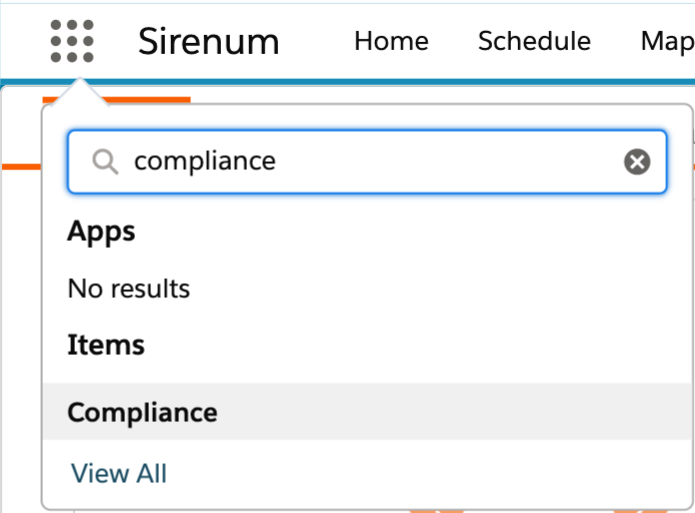
There are two ways in which a competency can be assigned to a candidate. When on the Compliance tab there is the card Assign Ticket. Either enter in the name of the competency and owner or use the lookup fields and enter in a Valid until date. Once finished click Save.
The other method you have available is to go onto a candidates record and within the Details tab, enter in the name of the competency with a date range. This option has the additional benefit of also including an attachment.
Once the details have been entered save the records. Congratulations you have assigned a ticket to a candidate
Once you have created the Health and Safety rule, we recommend creating a new shift or shift demand.
Assigning that shift to a candidate who won’t meet the requirement. Saving the Scheduling client and if the rule has been created correctly then a warning message will appear in the top left corner of the shift.
If this does not work because the candidate meets the rules add an additional shift and see the reaction. We highly recommend trailing these rules in Sandbox first to ensure it won’t conflict with the active system. Once fully tested migrate this rule over into production where it can be applied.
On the Compliance Tab, scroll to the bottom of the page. Available is the Expiring Tickets card and from here you will see all of the tickets which are soon to expire.
This allows you to have a conversation with the candidate(s) and update their records appropriately.
To create a New Competency this can be done on the Compliance Tab, here there is a Competency card where you can enter in the name of the competency and click create.
Should you wish to provide more detail click on the Competency card which will open up the object. Click New and enter in the details about the competency.
This feature is only available with the latest version of Sirenum (2.0). Within the Sirenum Home Legacy page, scroll down to the All Object card and find Related Competency.
Once on this screen click New and enter in the details of the Covering Competency and Covered Competency. Now provide a score factor for this Related Competency and click Save.
All candidates are given a score. This score is used by the Rule Matching Engine to determine who is the best candidate for the shift. For example when a candidate scores 100% what have they achieved in order to receive this score? items such as worked similar shifts, closeness to site, competencies.
If using Related Competencies when setting up a related competency you will need to enter this in to show preference. i.e. a person holding a UK Driving License Cat D can cover shifts which require a driver to have category D1 and using a score factor of 0.70 will move candidates up the list when looking for replacements.
The field names can be found in the following location:
Setup -> Object Manager -> Contact or Shift –> Fields & Relationships