
To automatically refresh the Map, open the Menu and select Auto Refresh. The option will turn green and the map will now update every 15 seconds.
There are two Scheduled Task called Watchdog located within All Scheduled Tasks.
Sirenum recommends deleting these tasks and recreating them.
1. Go to the Setup
2. Using the Quick Find, enter Scheduled Jobs
3. Locate Execute Scheduled Tasks Watchdog 1 and 2. Make a note of the details
3. Delete Execute Scheduled Tasks Watchdog 1 and 2
4. Recreate Execute Scheduled Tasks Watchdog 1 and 2
5. Rerun the Licence Script
Yes, sending a SMS will be at your providers normal rate.
In the event that you receive a notification please follow these steps:
1. Go to Security Controls -> Certificate and Key Management
2. Rename current certificate including suffix_old
3. Create a new self-signed certificate with the previous name. With the key size 4096 and “Exportable Private Key” disabled
In the affected users’ profile, check the Field-Level Security permissions for a Contact object field called Photo ID. The field should have the Edit access enabled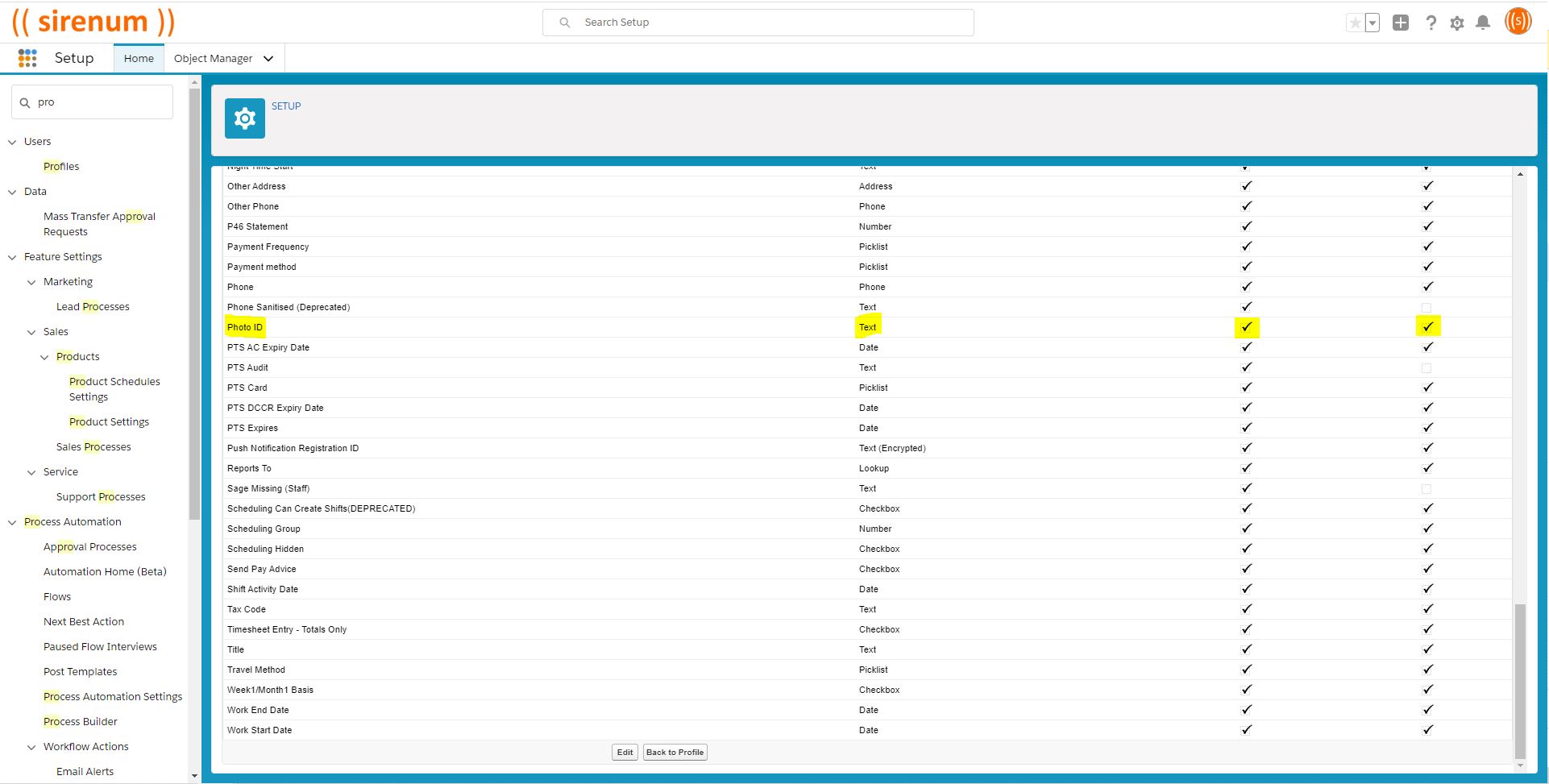
The default implementation hardcodes it to 10km, but it may be possible to create your own filter and therefore specify your own radius using the Map__c object.
It is possible to create your own filter for Sirenum Maps. This action can only be performed by a System Administrator.
To create a new map filter, access the Maps Object using the All Objects card. Click New and select the Map Type. The map filter can be created on the following Map Type:
1. Shifts
2. Sites
3. Location
4. Touches
5. Contacts (addresses)
6. Checkin
7. Scanners
8. Assets
9. Patrols
Enter in the filter details and save the record. Refresh Sirenum Maps and the filter will be available.
I want to make Sirenum Homepage modules not visible for some users. How can this be done?
Go to Menu Layouts and, for the module you want to restrict access to, in the Filter field, enter the profile name assigned to the users you want to grant access to it.
In the example below, only System Administrators will be able to see the module.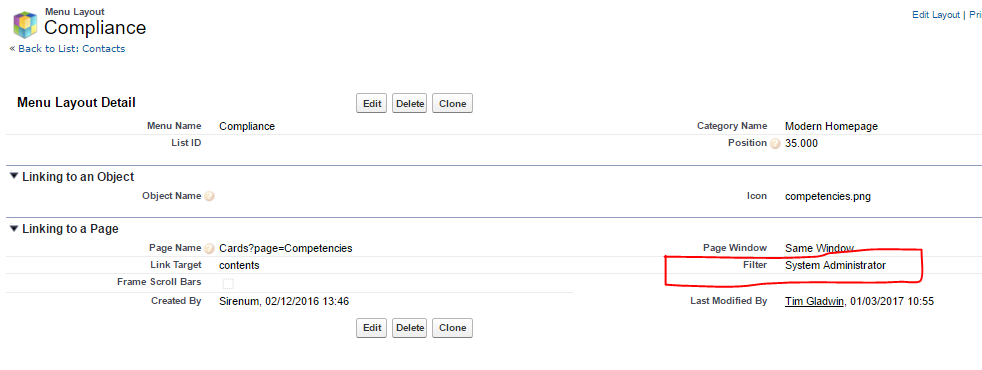
The newly created picklist values need to be moved from available values to the selected values in the object record type picklist values.
This is a permissions issue. The Profile is missing access to the scheduling SMS custom setting. After giving the profile access, log out and clear your cache. Once completed log back in.
If your workers are more likely to read an email, you could use the Mass Email functionality. Accessed through the Sirenum Menu on the Schedule, type up your email, apply the appropriate filters and send out to your workforce.
Another method is using the Communication Console, this needs to be installed and configured but will allow you to send push notifications, emails and SMS messages. To have the Communication Console installed please contact your Customer Success Manager.
Yes, please contact Sirenum Support who can initiate a Sandbox refresh on the ‘Partial’ environment.
It is worth noting that Salesforce has no specific SLA for doing sandbox refreshes, however it should be done with 24 hrs.
For more information about Sandbox refreshes please read the following article. Refresh Your Sandbox
There are a few reasons that this can occur:
1. If the user has requested a password reset more than once within a 24-hour period, the password cannot be changed.
2. The maximum invalid login attempts has been exceed and therefore the user is locked out and requires an Admin to activate.
3. If a user takes too long to respond to the password reset email.
In order for the ‘Create Recurring Series of Tasks‘ checkbox to display during the Task creation process, the ‘Delete Series‘ and ‘View Series‘ actions must be added to the Mobile & Lightning Action section of the page.
Since it isn’t possible to add these buttons to an Action layout, it is not possible to display ‘Create Recurring Series of Tasks‘ on the Action layout.
Checkbox of recurring Task is greyed out when editing an existing Task
This is expected behaviour. The checkbox for recurring task can only be selected when you are creating a new Task.
Please read the following article for more information. Knowledge Article