
This can be done on the Schedule. From the Requirements Row right click and select Shift, Shift Demand or Job Order. You will be presented with the mini form where you can enter in the details about the Shift.
There are multiple ways that a Shift can be assigned to a worker:
1. Drag the Shift onto the Worker line, and save the Schedule Client
2. Right Click on the Shift and select Find Resource
3. Right Click on the Shift and select Open Shift
4. Right Click on the Shift and select Auto Assign
**Please note that for this option you will require historical data to ensure the accuracy of the shift being assigned to people.
The top row of the Schedule is called the Requirements Row.
This is where you will enter in the requirements from the Client. Once complete assign that Shift to a worker.
There are different ways in which a site can be created. This can be done either through the Mini Form on the Schedule, using the Site tab on the Salesforce Navigation bar, or by using the App Launcher search for Site.
If you are creating a Site from the Schedule, create a new shift. Within the Site field start to type so that the drop-down menu appears. At the top of the menu select + New Site. This will open another mini form where you can enter in the site details without having the leave the Schedule.
The second option for creating a site is to use the App Launcher, once loaded using the search feature type Site. Select the Site Object, click New and enter in the details about the site.
The third option available is to select the Site Object on the Salesforce Navigation bar, click New and enter in the details about the site.
A Job Role can be created using different methods. It can be done using the Mini Form on the Schedule, using the App Launcher and searching for Job Role, or by using the Job Role tab on the Salesforce Navigation bar.
If you are using the Mini Form on the Schedule, create a new shift. Locate the Job Role field and start to type to allow for the drop-down menu appears. At the top of the menu select + New Job Role. This will open another mini form where you can enter in the details about the Job Role.
If you are using the App Launcher, once loaded search for Job Roles and select this object. Click on the New button in the top right corner and enter in the details for the Job Role.
If you are using the Job Role from the Salesforce Navigation bar, click on the Job Role object. Once the object has loaded click New and enter in the details about the Job Role.
You have invited workers to a shift by using the Open Shift functionality. When we are setting up the invitations the option “Manager Approval” was checked. This means that when you send out the invitations and the workers accept the shift, a request for approval is sent to you first.
Those requests that come back from the worker are Unapproved Shift Trades and require your approval before the shift is assigned to the worker.
A Shift Demand can be created within the Schedule. Once the Schedule has loaded, right click on the Requirement Row and select Shift Demand.
This will open a mini form where you can enter in the details of the Shift Demand i.e. start and end time and number of required staff.
To answer this question let me propose a scenario. You have two shift requirements. The first requirement is for a single worker and the second requirement is for 10 workers.
For the first requirement you can enter in a Shift, this will cover off the requirement as you enter in the details and assign that shift to a worker. For the second requirement shift functionality will fulfil the requirement but you will need to create 10 individual Shifts on the Schedule. That’s going to be very time consuming.
By using Shift Demand you are able enter in one shift requirement onto the Schedule but capture you require 10 workers for this Shift. The details of the Shift Demand persists no matter who gets assigned/re-assigned the Shift. The demand stays available even if the Shift is cancelled/deleted.
We recommend using Shift Demands because they are better for traceability of customer requests for workers.
A Job Orders represents multi-day demands for workers and provide a more powerful and flexible, Shift Demand-based replacement for Booking Requirements. They are managed using the Job Orders tab and the associated record page in the Sirenum Lightning App and can additionally be created within the Schedule.
When a Job Order is first created they are in “Pending” status. The consultant is responsible for ensuring that they are appropriately and completely defined. Once ready, the Job Order moves to “Ongoing” status. This can be achieved using either the Status Path (marking the status as complete) or using the “Generate Shift Demands” action.
Once all Shift Demands have been generated the Job Order moved from “Ongoing” to “Fully Planned” and once the Job Order’s end date is in the past it transitions to “Completed.”
The Schedule marks Shift Demands (and their Shifts) as belonging to a Job Order via a calendar icon at the right-hand corner of the status bar.
Additionally, when this icon is shown, this indicates that the Job Order’s name is shown instead of a Job Role. Further details of the Job Order can be made visible in a tooltip against the calendar icon by populating the “autocomplete_additional_fields” field set on Job Order itself. 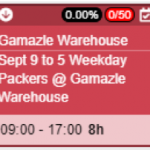
This feature is only available with the latest version of Sirenum 2.0. A Work Schedule is used to define the “shift pattern” to be applied.
To create a new Work Schedule this can be created within the Job Orders form or using the App Launcher search for Work Schedules. Click New and enter:
The Name of the Work Schedule
The Account this Work Schedule will be associated with
The Cycle Length and the total length.
The last two fields work together but Cycle Length can be left blank if required. We can use Cycle Length to break up the view when using the Lightning Schedule. If the Total Length was 22 and the Cycle Length was 2 then on the Lightning Schedule there would be two columns.
On the Schedule a new filter has been added to the main filter group. When click on the filter symbol and presented with the options. Click on Job Order, this will show you all of the active Job Orders.
An offset is used to indicate which Shifts start on which day. The offset uses the Work Schedule to know what is the schedule. Therefore depending on how you have created the Work Schedule when entering in the offset the system will go through the cycle building the Shift Demands accordingly.
For Example:
Here we have a Work Schedule
Day 0 = Shift A . Day 1 = Shift B . Day 2 = Shift C . Day 3 = Shift D . Day 4 = Shift E
If the Offset is 0 The system would start with Shift A and keep going until the Job Order end date is reached
Date . 05 Jan . 06 Jan . 07 Jan . 08 Jan . 09 Jan . 10 Jan
Shift . A . B . C . D . E . A .
If the Offset is 2. The system would start with Shift C and keep going until the Job Order end date is reached
Date . 05 Jan . 06 Jan . 07 Jan . 08 Jan . 09 Jan . 10 Jan
Shift . C. D . E . A . B . C .
Fatigue and Risk is calculated on an individual basis, Sirenum will include previous shifts that have been assigned to that worker therefore it is best practise to look at the Actual Times as well as Scheduled.
Another reason for the Fatigue and Risk Index being different on another worker is that the shifts have been assigned, and the Fatigue configuration was changed. To see the most up-to-date Index. Right Click on each worker and select Calculate Fatigue and Risk. Sirenum will updated to present the latest Index figures.
The best way to see this information is to run a report. Setting up the report filters to see a certain time frame.
From this report you will have a clear picture of who is logging in and remove access if required.
It is possible to customise the Sirenum Mini-form. This can only be completed by a System Administrator.
Please see the relevant lessons below:
https://university.sirenum.com/topic/customising-the-mini-form
The Open Demand UI was intended for selective invitations, that is, the user selects some candidates to invite from a list of the top 200 results. This 200 limit is hardcoded in the UI and can be overridden with custom theme code.
However, creating more than 200 invites by this UI might result in hitting APEX Limits.
There could be a few reasons for workers not appearing in Find Resource.
1. The worker you are intending to use could already be booked for another shift.
2. The worker you are intending to use might not be available due to an Employee Request.
3. The worker lives too far away from Site.
4. The worker could be inactive (they have not attended any shifts in 90 days).
To resolve option 3, it is possible to update the Custom Settings -> Find Resource Settings to increase/decrease the bonus given for living close to site.
To resolve option 4, the system requires a Timesheet from the worker to become Active again. This worker will require manual assignment/processing until they have a Timesheet. Once Sirenum has a recent Timesheet the worker will become Active.
The reason for this error is because the Internet Browser is not supported. Sirenum recommends that the Schedule is loaded using Google Chrome.
Firstly check the criteria and conditions of the Health & Safety Rule, is this information correct? Once confirming this information is correct go to the Schedule.
There could be an Ad-hoc Shift(s) with unknown times, this means that Sirenum will assume it is a 24 hour shift. It is recommended to convert the Ad-hoc Shift to a Shift. Once this conversion has happened, right click on the shift and select Edit. Fill in any missing details and Save the Shift. Now Save the Schedule.
To ensure data is complete right click on the Shift, hover over Advanced in the context menu and select Actual Times. Enter in the Actual End Time and Save the Shift. Now Save the Schedule to commit the details.