
We only support Android and iOS, not Windows Phone or any other OS.
Android: from 4.1 onwards – Sirenum highly recommends version 5.1 or above.
iOS: from iOS 10 onwards.
Please contact your employment agency or employer should you need any assistance with logging in or using the app. They may provide contact details in the app’s menu, otherwise please visit their website or use details they previously shared with you.
If you have any issues with the app, for example, it is not loading or functioning correctly, please follow the troubleshooting steps listed in the Sirenum Troubleshooting lesson.
You can also reach out to your employment agency should you require further assistance.
Sirenum Engage connects users to organisations that provide work (or other aspects) via “Work Relationships.” Some employers support self-registration; in this case, as long as you’ve got the “login URL” you can use this to access the login screen.
Then tap the “Not a member?” link next to the “Forgot your Password?” to go through the self-registration process. Other employers will not allow this, in which case you can only get going when they have created you a User and you’ve received a welcome email.
If you’ve forgotten your password, you can use the “Forgot You Password?” option to reset it.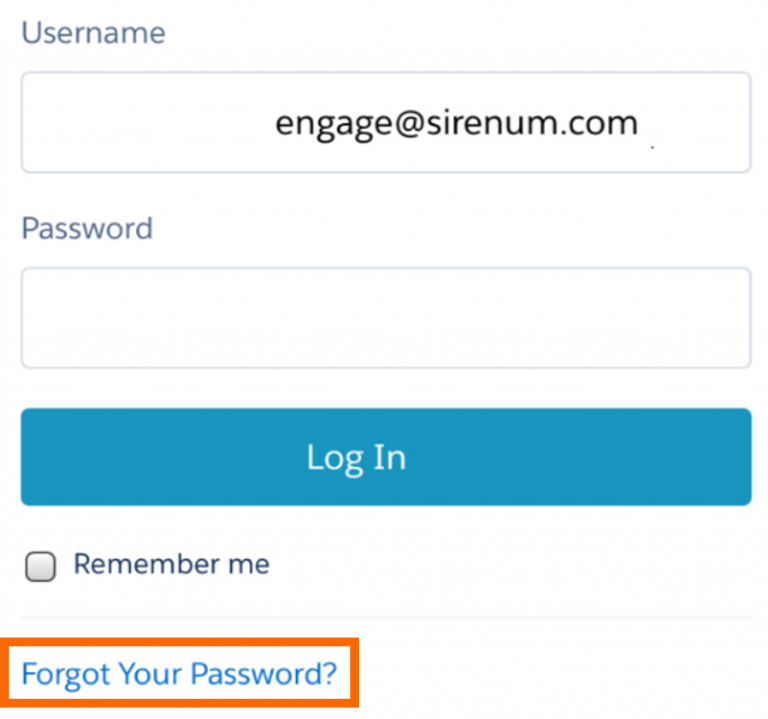
You will then be asked to insert your username. Another email will be sent to your inbox with instructions to change your password. This email should be opened in your mobile device’s email app.