
We’re moving sites. We’ve been going through some changes and a new FAQ page is available, please use the following link to access the new content:
Bullhorn Workforce Management FAQ
The Frequently Asked Question page is here to assist you with any further questions that you may have about Bullhorn Workforce Management. The page has been broken into different topics covering the major areas of Bullhorn Workforce Management. Click on a title which meets your questions requirement and explore.
This page will be updated, so look out for new information.
- All
- General Sirenum FAQ
- MySirenum
- Bullhorn Connect for Salesforce
- Scheduling
- Compliance
- Financial
- Reporting
- Community Portal
Bullhorn Connect for Salesforce
We only support Android and iOS, not Windows Phone or any other OS.
Android: from 4.1 onwards – Sirenum highly recommends version 5.1 or above.
iOS: from iOS 10 onwards.
Please contact your employment agency or employer should you need any assistance with logging in or using the app. They may provide contact details in the app’s menu, otherwise please visit their website or use details they previously shared with you.
If you have any issues with the app, for example, it is not loading or functioning correctly, please follow the troubleshooting steps listed in the Sirenum Troubleshooting lesson.
You can also reach out to your employment agency should you require further assistance.
Sirenum Engage connects users to organisations that provide work (or other aspects) via “Work Relationships.” Some employers support self-registration; in this case, as long as you’ve got the “login URL” you can use this to access the login screen.
Then tap the “Not a member?” link next to the “Forgot your Password?” to go through the self-registration process. Other employers will not allow this, in which case you can only get going when they have created you a User and you’ve received a welcome email.
If you’ve forgotten your password, you can use the “Forgot You Password?” option to reset it.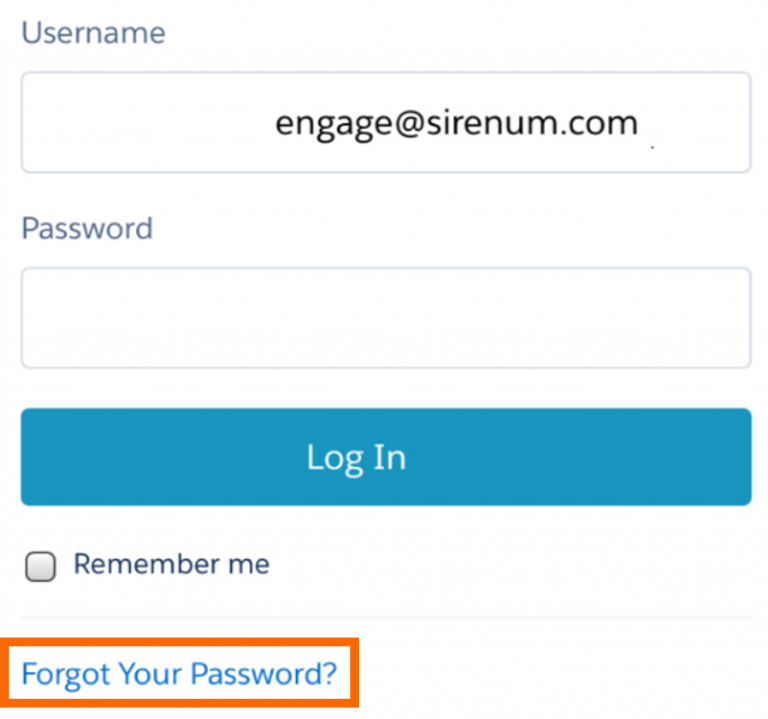
You will then be asked to insert your username. Another email will be sent to your inbox with instructions to change your password. This email should be opened in your mobile device’s email app.
Community Portal
The Community Portal is used to share information and collaborate with your clients. It is possible to share a subset of features and data from your Sirenum system.
Access the Setup
Using Quick Find search for Digital Experience or Community
Click the All Sites tab
Click Builder to access the site in edit mode or click on the URL to access the active site
Before provide a client access, you need to ensure there is sufficient Customer Community Plus licences.
To check the number of licence numbers:
▪Access the Setup
▪Using Quick Find search for Company Information
▪Locate User Licenses
▪Look for Name and Remaining Licenses
Additionally a suitable Community User profile needs to be created and the correct permission levels need to be provided.
To check a profile:
▪Access the Setup
▪Using Quick Find search for Profiles
▪Access the Profile
▪Look for Standard and Custom Object Permissions
To provide a client with access to your Community Portal
▪Identify the Client Contact
▪Click on the Contacts tab on the navigation bar
▪Select the Client Contact record
▪On the Client Contact record, click the drop down arrow button
▪Select Enable Customer User
▪You are taken to a Create User page
▪Check the Email address and Username
▪Check the number of Licences
▪Select the appropriate Profile
▪Review the Locale Settings
▪Save the User Record
▪A Salesforce Email will be sent to the Client Contact
Yes, you can update the clients permissions within the profile to allow for clients to create or approve requests.
First you will need to check if the Community User has access to the Community Portal. You can do this by viewing the permission Manage External Users.
For more information please use the following link Create Experience Cloud Site Users
Yes, It is possible to create your own custom theme layout for the community portal. This will allow you to add in your own corporate branding.
For more information, please use the following Trailhead Build a Custom Theme Layout Component
General WFM Questions
To automatically refresh the Map, open the Menu and select Auto Refresh. The option will turn green and the map will now update every 15 seconds.
There are two Scheduled Task called Watchdog located within All Scheduled Tasks.
Sirenum recommends deleting these tasks and recreating them.
1. Go to the Setup
2. Using the Quick Find, enter Scheduled Jobs
3. Locate Execute Scheduled Tasks Watchdog 1 and 2. Make a note of the details
3. Delete Execute Scheduled Tasks Watchdog 1 and 2
4. Recreate Execute Scheduled Tasks Watchdog 1 and 2
5. Rerun the Licence Script
Yes, sending a SMS will be at your providers normal rate.
In the event that you receive a notification please follow these steps:
1. Go to Security Controls -> Certificate and Key Management
2. Rename current certificate including suffix_old
3. Create a new self-signed certificate with the previous name. With the key size 4096 and “Exportable Private Key” disabled
In the affected users’ profile, check the Field-Level Security permissions for a Contact object field called Photo ID. The field should have the Edit access enabled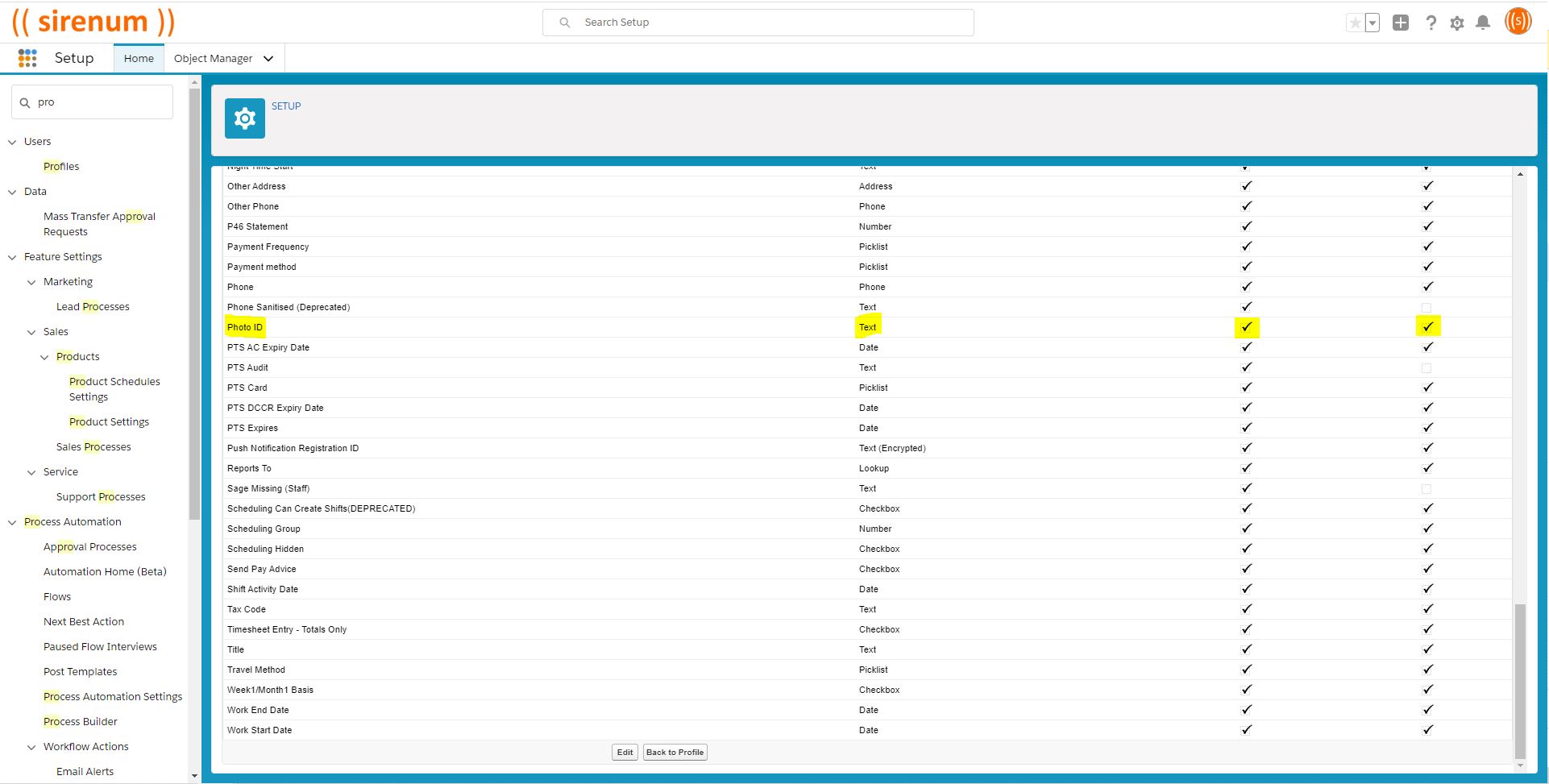
The default implementation hardcodes it to 10km, but it may be possible to create your own filter and therefore specify your own radius using the Map__c object.
It is possible to create your own filter for Sirenum Maps. This action can only be performed by a System Administrator.
To create a new map filter, access the Maps Object using the All Objects card. Click New and select the Map Type. The map filter can be created on the following Map Type:
1. Shifts
2. Sites
3. Location
4. Touches
5. Contacts (addresses)
6. Checkin
7. Scanners
8. Assets
9. Patrols
Enter in the filter details and save the record. Refresh Sirenum Maps and the filter will be available.
I want to make Sirenum Homepage modules not visible for some users. How can this be done?
Go to Menu Layouts and, for the module you want to restrict access to, in the Filter field, enter the profile name assigned to the users you want to grant access to it.
In the example below, only System Administrators will be able to see the module.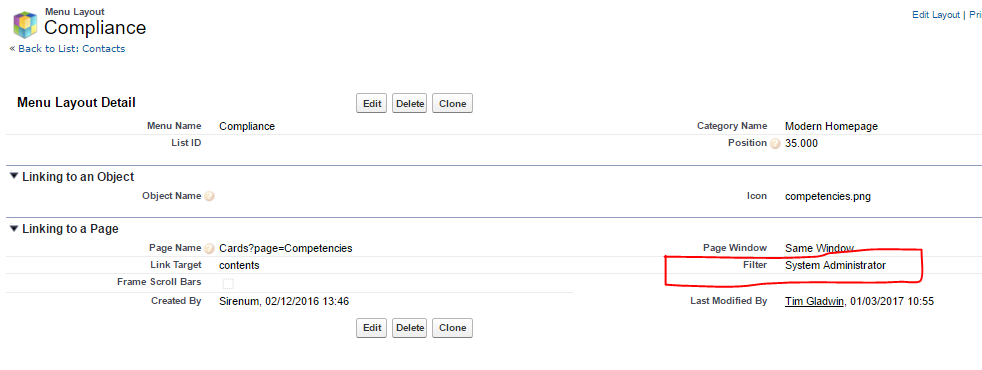
The newly created picklist values need to be moved from available values to the selected values in the object record type picklist values.
This is a permissions issue. The Profile is missing access to the scheduling SMS custom setting. After giving the profile access, log out and clear your cache. Once completed log back in.
If your workers are more likely to read an email, you could use the Mass Email functionality. Accessed through the Sirenum Menu on the Schedule, type up your email, apply the appropriate filters and send out to your workforce.
Another method is using the Communication Console, this needs to be installed and configured but will allow you to send push notifications, emails and SMS messages. To have the Communication Console installed please contact your Customer Success Manager.
Yes, please contact Sirenum Support who can initiate a Sandbox refresh on the ‘Partial’ environment.
It is worth noting that Salesforce has no specific SLA for doing sandbox refreshes, however it should be done with 24 hrs.
For more information about Sandbox refreshes please read the following article. Refresh Your Sandbox
There are a few reasons that this can occur:
1. If the user has requested a password reset more than once within a 24-hour period, the password cannot be changed.
2. The maximum invalid login attempts has been exceed and therefore the user is locked out and requires an Admin to activate.
3. If a user takes too long to respond to the password reset email.
In order for the ‘Create Recurring Series of Tasks‘ checkbox to display during the Task creation process, the ‘Delete Series‘ and ‘View Series‘ actions must be added to the Mobile & Lightning Action section of the page.
Since it isn’t possible to add these buttons to an Action layout, it is not possible to display ‘Create Recurring Series of Tasks‘ on the Action layout.
Checkbox of recurring Task is greyed out when editing an existing Task
This is expected behaviour. The checkbox for recurring task can only be selected when you are creating a new Task.
Please read the following article for more information. Knowledge Article
Compliance
Compliance relates to three areas Competencies, Competency Conditions and Health & Safety Rules. To access the Compliance area select Compliance from the Sirenum Menu.
Did you know, you can also use the App Launcher and search for the tab that you need?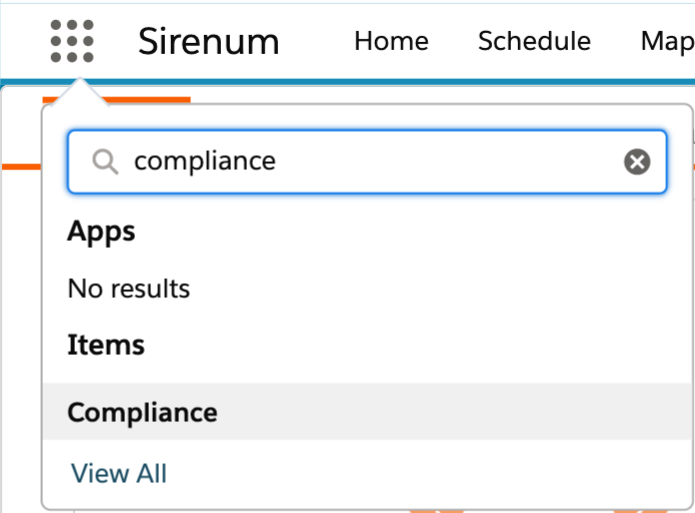
There are two ways in which a competency can be assigned to a candidate. When on the Compliance tab there is the card Assign Ticket. Either enter in the name of the competency and owner or use the lookup fields and enter in a Valid until date. Once finished click Save.
The other method you have available is to go onto a candidates record and within the Details tab, enter in the name of the competency with a date range. This option has the additional benefit of also including an attachment.
Once the details have been entered save the records. Congratulations you have assigned a ticket to a candidate
Once you have created the Health and Safety rule, we recommend creating a new shift or shift demand.
Assigning that shift to a candidate who won’t meet the requirement. Saving the Scheduling client and if the rule has been created correctly then a warning message will appear in the top left corner of the shift.
If this does not work because the candidate meets the rules add an additional shift and see the reaction. We highly recommend trailing these rules in Sandbox first to ensure it won’t conflict with the active system. Once fully tested migrate this rule over into production where it can be applied.
On the Compliance Tab, scroll to the bottom of the page. Available is the Expiring Tickets card and from here you will see all of the tickets which are soon to expire.
This allows you to have a conversation with the candidate(s) and update their records appropriately.
To create a New Competency this can be done on the Compliance Tab, here there is a Competency card where you can enter in the name of the competency and click create.
Should you wish to provide more detail click on the Competency card which will open up the object. Click New and enter in the details about the competency.
This feature is only available with the latest version of Sirenum (2.0). Within the Sirenum Home Legacy page, scroll down to the All Object card and find Related Competency.
Once on this screen click New and enter in the details of the Covering Competency and Covered Competency. Now provide a score factor for this Related Competency and click Save.
All candidates are given a score. This score is used by the Rule Matching Engine to determine who is the best candidate for the shift. For example when a candidate scores 100% what have they achieved in order to receive this score? items such as worked similar shifts, closeness to site, competencies.
If using Related Competencies when setting up a related competency you will need to enter this in to show preference. i.e. a person holding a UK Driving License Cat D can cover shifts which require a driver to have category D1 and using a score factor of 0.70 will move candidates up the list when looking for replacements.
The field names can be found in the following location:
Setup -> Object Manager -> Contact or Shift –> Fields & Relationships
Financial
Rate Modifier will allow for extra differentiation in a rate line, based on an attribute of the shift. Using modifiers requires some custom work and adding them into dedicated Salesforce objects.
For instance, if you want to use an attribute from the site or the contact, you can add a formula filed to the shift and then use that as a modifier. The result will be that any line in the rate card could be split into lines with other rates based on those modifiers.
Weekends are Saturday and Sunday, from midnight to midnight
Weekdays are Monday to Friday, from midnight to midnight
At the bottom of the Rate Card page there is a section that should show which objects are connected to it.
Rate Cards are typically used at the Job Role level, though it can also be used at Placement, Job Type, Contract and Account level. If no Rate Card is defined for the Job Role, the Payroll Calculation will continue looking for one.
Yes, though if the shifts starts on Sunday before midnight, you can set the rate by the start time.
Sites do not use Rate Cards directly. Rate Cards are defined at the Job Role.
They could be filtered on a Rate Card Page by using a Condition or a Rate Card Modifier.
How can I avoid Rate cards from being required when fill in a Requirement form in scheduling?
Go to Sirenum Global custom settings and untick the box for the custom setting field called ‘Use named rate cards’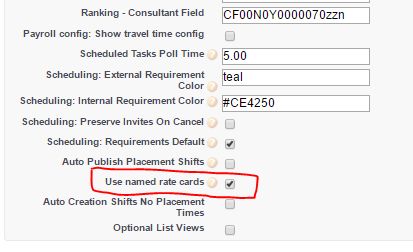
If a Break Definition has been defined, when running payroll there will be two timesheet lines for the shift. One timesheet line before the break occurred and the second timesheet line after the break has been completed. It is important to pay close attention to the scheduled times as the second timesheet line will have the break amount deduced.
This could be the result of a duplicate account.
The Contact could have been connected to the wrong duplicate account. It is recommended that the duplicate account is changed to identify it is a duplicate, then update the contacts that have been assigned to the duplicate account.
One of the reasons why the Rate Line is not being used is because the Special Date has not been updated to the recent year.
Another cause could be that another Rate Line is being used instead due to conditions meeting that Rate Line. Remember for Rate Lines they are read from bottom to top. It might be worth moving the Rate Line lower in the list.
Yes, cancelled shifts are ignored when generating timesheets and you wont get shifts that have been cancelled added to the hours on the timesheet.
MySirenum
If Logged in to MySirenum the candidate can select Change Password from the Menu. This will ask them to enter in their existing password and create a new one.
If the worker is at the login page, they will need to select Forgotten Password. After pressing this option, the worker will need to enter in their Email Address and Date of Birth.
If the details are correct with what is in the Sirenum system this will trigger an email. The worker will follow the instructions in the email to set up and new password.
Once completed they can then log into MySirenum.
To access the manager features, firstly the Client Contact will need to be set up to have Manager Mode. This is done through the contact record and within the MySirenum Access provide Manager Mode access. The Client Contact will need to be set up as a manager for the site.
Once access has been provided, have the manager log into MySirenum. Open the Menu and there will be an option called Manager. The Manager has the following abilities:
See all the ongoing shifts for that site
Clock candidates in/out using NFC capability or manually
Check who is on-site
Assign tags
MySirenum has lots of different features available to a worker. Using MySirenum opens up the lines of communication between the agency and workers. The worker has the following features:
Confirm they are on their way to a shift
Clock in and Clock out for a shifts
Check future shifts
State their availability while also requesting time off
Manually enter in their hours
Contact the office directly
Access the worker record, by going to Contacts. Locate the worker and on the Details tab enter in a valid Email address and Date of Birth for the worker.
Scroll down to the MySirenum Section in the Details Tab. Provide the appropriate level of access e.g. See Shifts.
You could set-up a temporary password for them which is located under the Description Information and Client Access.
Ask the worker to download MySirenum from the Google Play or App Store.
Have the worker enter in their Email Address and click Next. MySirenum will then check the details of the worker. Once finished, press Sign Up. This will generate an email to the worker where they can create their own password.
If a temporary password was created, this would be entered instead.
Once the password has been created, enter this in and press Login.
The worker is now set up to use MySirenum. Further information about how to set up a worker can be found using the following link. https://university.sirenum.com/topic/first-time-users
If a worker wishes to change their password this can be done through the menu, selecting the option Change Password. They need to enter in their old password and then create a new one.
MySirenum is available to download onto any Android or iOS device. The app can be found in either the Google Play or App Store.
To raise a Holiday Request using MySirenum. Open the Menu and select Holiday Request.
Once selected the worker can enter in the Start Date and Time along with the End Date and Time. After the details have been entered, the worker can submit the request.
The Holiday Request is available on the Schedule for that worker, and the consultant can see the details. The consultant has the ability to either Approve or Reject the request.
Depending on the outcome, the worker is able to see this by selecting Shifts in the Menu of MySirenum.
The Confirm button informs the agency the worker is On My Way to the shift.
The Confirm button becomes available 2 hours prior to the shift commencing. This can be changed but can only be done by a System Administrator within the Setup.
Your workers have the ability to provide details about their availability. e.g. Every Monday until 15th Dec the worker has University Lectures.
Using MySirenum, the worker can access the Menu and select Availability Periods. The worker would set their availability/unavailability.
Set the date range and time period the work is available/unavailable. The worker can the set if this request is for a specific day of the week or during the whole time frame.
Once the worker has saved the details this will appear on the Schedule.
Once Shifts have been assigned to a worker and Published. The worker can see them within MySirenum.
To view the shifts in a calendar view from the Menu select Shifts. This options shows the worker all of their future shifts.
Depending on personal Settings the worker will either see the shifts displayed in a Weeks view or Calendar view. If the worker would prefer to see shifts in a calendar view, click on the Menu again and under the Shift option the Calendar View is available.
Make sure that the worker has been onboarded correctly. Ensure their details have been entered into Sirenum correctly. Checking their Email Address, Date of Birth and MySirenum Permissions.
It’s worth mentioning it may take up to 24 hours after initial onboarding before the candidate can access the app. Please inform the candidate they might have to wait.
Ask the worker to tap on the Sirenum Logo within MySirenum. If a drop down menu appears this means they are connected to multiple environments.
Workers should only be connected to a Live (Production) system. Ask the worker to select the Live Environment from the drop down and ask the worker to login.
If this not the case, then check the workers details on Sirenum. While checking their details ask the worker if they have mobile signal or a WiFi connection.
If the details are correct on Sirenum, ask them to reset their password, run a Reload Companies and login.
This could be the worker has no Shift assigned to the worker or the Shift has not been Published.
Please ask your worker to see if there are any shift details (for example location, start/end time, etc.) located below the Start button.
Please check the Schedule to see if a Shifts have been assigned to the worker. If there is no Shift on the Schedule, please create a shift directly on the worker row and Publish the shift.
The worker will need to refresh the screen to see the update.
If this does not resolve the issue, please contact Sirenum Support with a screenshot of error and the steps the worker took when they go the error.
Please clarify with the worker when are they getting the error message.
What button are they pressing before this error happens?
Can they see the “Confirm” and “Start” button behind the error box?
If so, the worker is attempting to “Start” their Shift and not on-site. Explain the difference between the Confirm and Start button and that they can only start their shift when they are on-site.
If this does not resolve the issue, please contact Sirenum Support with a screenshot of error and the steps the worker took when they go the error.
A MySirenum user is not able to view shifts or the Confirmation button despite having been assigned shifts:
This is because the worker may have more than 1 record in Sirenum. This could be a duplicate record in Sirenum, check with the worker the email address they are using and which record has shifts assigned to them.
Remove the duplicate record.
It is possible to hide elements within MySirenum. This can be done by a System Administrator.
Go to the Setup Menu, using the Quick Find search for Custom Settings. Click Manage next to MySirenum, click Edit.
Locate “Hidden Elements” and enter in the menu option which needs to be hidden. See the image below for reference and the list of menu options’ names is also attached below.
The list of menu options’ names:
For Home, enter ‘menuHome’
For Shifts, enter ‘menuShifts’
For Time Entry, enter ‘menuTimeEntry’
For Gross Pay, enter ‘menuTimesheets’
For Make a request, enter ‘menuRequest’
For Event, enter ‘menuEvents’
For Manager, enter ‘menuManager’
For Find Shifts, enter ‘menuAllShifts’
For NFC Scanner, enter ‘menuNFC’
For Create Shift, enter ‘menuCreateShift’
For Settings, enter ‘menuSettings’
For Office Details, enter ‘menuOffice’
For Change Password, enter ‘menuPassword’
For Log Out, enter ‘menuLogout’
For Exit, enter ‘menuExit’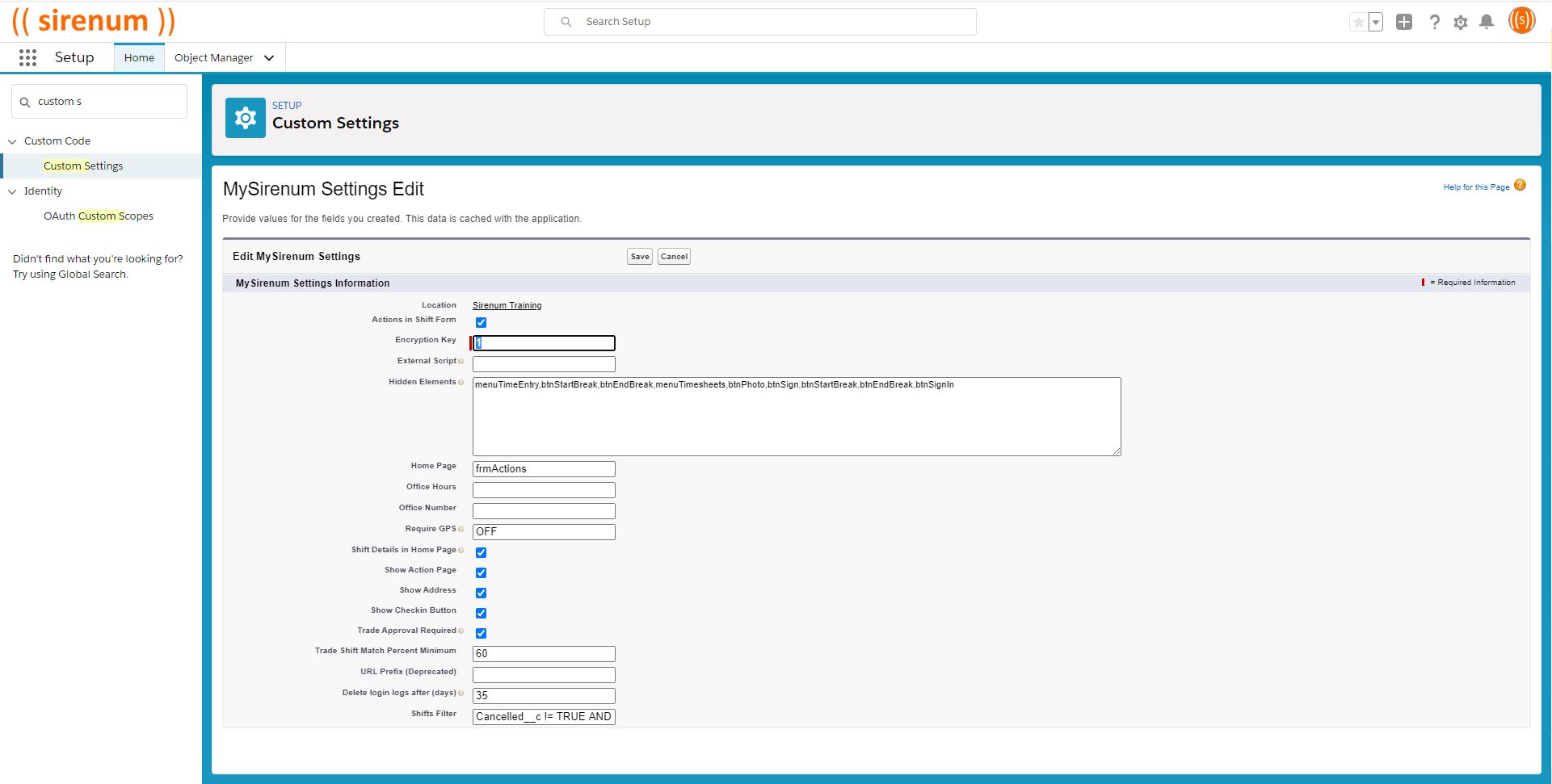
The worker has to be close to Site in order to Clock In (Sign-in) for their shift. Sirenum uses geo-fencing along with the mobiles GPS coordinates to allow for the Clock In process. If the worker is outside of the geo-fence they will receive an error message.
It is important to note that the worker can Confirm (On My Way) their shift from anywhere but to start a shift they need to be close to the Site.
Reporting
The report type you choose determines which records and fields appear in your report. For example, the Contacts report type gives you access to Contact records and fields like Name, Address, Telephone Number, etc.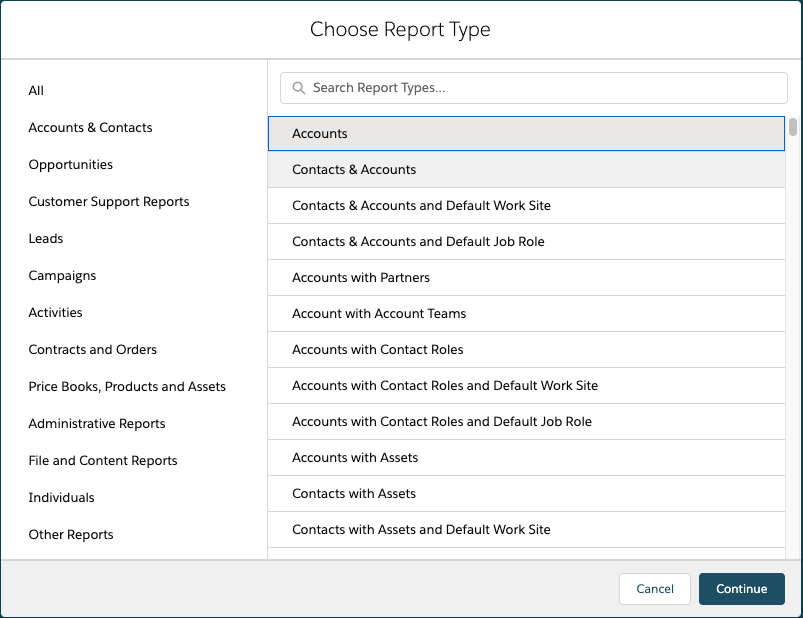
Once the Report Type has been selected. A report can use the tabular, summary, matrix, or joined format.
A Tabular Report are the simplest and fastest way to look at data. Similar to a spreadsheet, they consist simply of an ordered set of fields in columns, with each matching record listed in a row. Tabular reports are best for creating lists of records or a list with a single grand total. They can’t be used to create groups of data or charts, and can’t be used in dashboards unless rows are limited. Examples include contact mailing lists and activity reports.
A Summary Report are similar to tabular reports, but also allow users to group rows of data, view subtotals, and create charts. They can be used as the source report for dashboard components. Use this type for a report to show subtotals based on the value of a particular field or when you want to create a hierarchical list, such as all opportunities for your team, subtotaled by Stage and Owner. Summary reports with no groupings show as tabular reports on the report run page.
A Matrix Report are similar to summary reports but allow you to group and summarize data by both rows and columns. They can be used as the source report for dashboard components. Use this type for comparing related totals, especially if you have large amounts of data to summarize and you need to compare values in several different fields, or you want to look at data by date and by product, person, or geography. Matrix reports without at least one row and one column grouping show as summary reports on the report run page.
A Joined Report let you create multiple report blocks that provide different views of your data. Each block acts like a “sub-report,” with its own fields, columns, sorting, and filtering. A joined report can even contain data from different report types.
Joined reports are available only in Enterprise, Performance, Unlimited, and Developer Editions.
There are a couple of answers to this question:
1. The Scheduled Report will run based on the time-zone of the user who created the report.
2. The report will run within a 30 minute of the preferred start time i.e. preferred start is 12:30, depending on what is happening on the system it will arrive within a 30 min time frame either side of the preferred start time.
3. You need an HTML enabled email client to view the report.
Check that the “Allow Reports and Dashboards to Be Sent to Portal Users” setting is ticked as the picture below depicts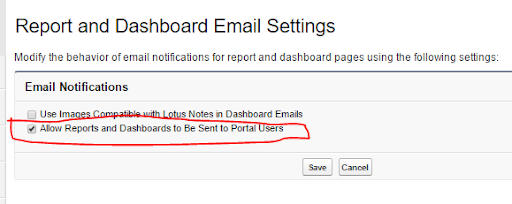
Check that the folder where the report or reports reside can be shared with the portal users (note that the Unified Public folder is shared with all users, internal and external so that folder is ideal for this purpose)
When setting up the schedule, select the ‘Customer Portal Users’ option from the search menu and then move the user or users who should receive the email with the report to the ‘Send Email To’ box.
To show or hide the chart, click pie symbol.
To edit the chart, click cog symbol within the chart.
From the chart editor, change chart type, give the chart a title, change axes, show or hide a reference line, and show or hide chart values.
Please note that you will need at least one grouping to create a chart
To fix this problem you can either:
1. Reactivate the user
2. Update the Schedule and change the running user
3. Delete the scheduled job. If the running user scheduled a report in his or her personal folder, you cannot edit this schedule; however , if you have “Modify All Data” permissions, you can delete the job from the All Scheduled Jobs page.
Scheduling
This can be done on the Schedule. From the Requirements Row right click and select Shift, Shift Demand or Job Order. You will be presented with the mini form where you can enter in the details about the Shift.
There are multiple ways that a Shift can be assigned to a worker:
1. Drag the Shift onto the Worker line, and save the Schedule Client
2. Right Click on the Shift and select Find Resource
3. Right Click on the Shift and select Open Shift
4. Right Click on the Shift and select Auto Assign
**Please note that for this option you will require historical data to ensure the accuracy of the shift being assigned to people.
The top row of the Schedule is called the Requirements Row.
This is where you will enter in the requirements from the Client. Once complete assign that Shift to a worker.
There are different ways in which a site can be created. This can be done either through the Mini Form on the Schedule, using the Site tab on the Salesforce Navigation bar, or by using the App Launcher search for Site.
If you are creating a Site from the Schedule, create a new shift. Within the Site field start to type so that the drop-down menu appears. At the top of the menu select + New Site. This will open another mini form where you can enter in the site details without having the leave the Schedule.
The second option for creating a site is to use the App Launcher, once loaded using the search feature type Site. Select the Site Object, click New and enter in the details about the site.
The third option available is to select the Site Object on the Salesforce Navigation bar, click New and enter in the details about the site.
A Job Role can be created using different methods. It can be done using the Mini Form on the Schedule, using the App Launcher and searching for Job Role, or by using the Job Role tab on the Salesforce Navigation bar.
If you are using the Mini Form on the Schedule, create a new shift. Locate the Job Role field and start to type to allow for the drop-down menu appears. At the top of the menu select + New Job Role. This will open another mini form where you can enter in the details about the Job Role.
If you are using the App Launcher, once loaded search for Job Roles and select this object. Click on the New button in the top right corner and enter in the details for the Job Role.
If you are using the Job Role from the Salesforce Navigation bar, click on the Job Role object. Once the object has loaded click New and enter in the details about the Job Role.
You have invited workers to a shift by using the Open Shift functionality. When we are setting up the invitations the option “Manager Approval” was checked. This means that when you send out the invitations and the workers accept the shift, a request for approval is sent to you first.
Those requests that come back from the worker are Unapproved Shift Trades and require your approval before the shift is assigned to the worker.
A Shift Demand can be created within the Schedule. Once the Schedule has loaded, right click on the Requirement Row and select Shift Demand.
This will open a mini form where you can enter in the details of the Shift Demand i.e. start and end time and number of required staff.
To answer this question let me propose a scenario. You have two shift requirements. The first requirement is for a single worker and the second requirement is for 10 workers.
For the first requirement you can enter in a Shift, this will cover off the requirement as you enter in the details and assign that shift to a worker. For the second requirement shift functionality will fulfil the requirement but you will need to create 10 individual Shifts on the Schedule. That’s going to be very time consuming.
By using Shift Demand you are able enter in one shift requirement onto the Schedule but capture you require 10 workers for this Shift. The details of the Shift Demand persists no matter who gets assigned/re-assigned the Shift. The demand stays available even if the Shift is cancelled/deleted.
We recommend using Shift Demands because they are better for traceability of customer requests for workers.
A Job Orders represents multi-day demands for workers and provide a more powerful and flexible, Shift Demand-based replacement for Booking Requirements. They are managed using the Job Orders tab and the associated record page in the Sirenum Lightning App and can additionally be created within the Schedule.
When a Job Order is first created they are in “Pending” status. The consultant is responsible for ensuring that they are appropriately and completely defined. Once ready, the Job Order moves to “Ongoing” status. This can be achieved using either the Status Path (marking the status as complete) or using the “Generate Shift Demands” action.
Once all Shift Demands have been generated the Job Order moved from “Ongoing” to “Fully Planned” and once the Job Order’s end date is in the past it transitions to “Completed.”
The Schedule marks Shift Demands (and their Shifts) as belonging to a Job Order via a calendar icon at the right-hand corner of the status bar.
Additionally, when this icon is shown, this indicates that the Job Order’s name is shown instead of a Job Role. Further details of the Job Order can be made visible in a tooltip against the calendar icon by populating the “autocomplete_additional_fields” field set on Job Order itself. 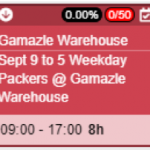
This feature is only available with the latest version of Sirenum 2.0. A Work Schedule is used to define the “shift pattern” to be applied.
To create a new Work Schedule this can be created within the Job Orders form or using the App Launcher search for Work Schedules. Click New and enter:
The Name of the Work Schedule
The Account this Work Schedule will be associated with
The Cycle Length and the total length.
The last two fields work together but Cycle Length can be left blank if required. We can use Cycle Length to break up the view when using the Lightning Schedule. If the Total Length was 22 and the Cycle Length was 2 then on the Lightning Schedule there would be two columns.
On the Schedule a new filter has been added to the main filter group. When click on the filter symbol and presented with the options. Click on Job Order, this will show you all of the active Job Orders.
An offset is used to indicate which Shifts start on which day. The offset uses the Work Schedule to know what is the schedule. Therefore depending on how you have created the Work Schedule when entering in the offset the system will go through the cycle building the Shift Demands accordingly.
For Example:
Here we have a Work Schedule
Day 0 = Shift A . Day 1 = Shift B . Day 2 = Shift C . Day 3 = Shift D . Day 4 = Shift E
If the Offset is 0 The system would start with Shift A and keep going until the Job Order end date is reached
Date . 05 Jan . 06 Jan . 07 Jan . 08 Jan . 09 Jan . 10 Jan
Shift . A . B . C . D . E . A .
If the Offset is 2. The system would start with Shift C and keep going until the Job Order end date is reached
Date . 05 Jan . 06 Jan . 07 Jan . 08 Jan . 09 Jan . 10 Jan
Shift . C. D . E . A . B . C .
Fatigue and Risk is calculated on an individual basis, Sirenum will include previous shifts that have been assigned to that worker therefore it is best practise to look at the Actual Times as well as Scheduled.
Another reason for the Fatigue and Risk Index being different on another worker is that the shifts have been assigned, and the Fatigue configuration was changed. To see the most up-to-date Index. Right Click on each worker and select Calculate Fatigue and Risk. Sirenum will updated to present the latest Index figures.
The best way to see this information is to run a report. Setting up the report filters to see a certain time frame.
From this report you will have a clear picture of who is logging in and remove access if required.
It is possible to customise the Sirenum Mini-form. This can only be completed by a System Administrator.
Please see the relevant lessons below:
https://university.sirenum.com/topic/customising-the-mini-form
The Open Demand UI was intended for selective invitations, that is, the user selects some candidates to invite from a list of the top 200 results. This 200 limit is hardcoded in the UI and can be overridden with custom theme code.
However, creating more than 200 invites by this UI might result in hitting APEX Limits.
There could be a few reasons for workers not appearing in Find Resource.
1. The worker you are intending to use could already be booked for another shift.
2. The worker you are intending to use might not be available due to an Employee Request.
3. The worker lives too far away from Site.
4. The worker could be inactive (they have not attended any shifts in 90 days).
To resolve option 3, it is possible to update the Custom Settings -> Find Resource Settings to increase/decrease the bonus given for living close to site.
To resolve option 4, the system requires a Timesheet from the worker to become Active again. This worker will require manual assignment/processing until they have a Timesheet. Once Sirenum has a recent Timesheet the worker will become Active.
The reason for this error is because the Internet Browser is not supported. Sirenum recommends that the Schedule is loaded using Google Chrome.
Firstly check the criteria and conditions of the Health & Safety Rule, is this information correct? Once confirming this information is correct go to the Schedule.
There could be an Ad-hoc Shift(s) with unknown times, this means that Sirenum will assume it is a 24 hour shift. It is recommended to convert the Ad-hoc Shift to a Shift. Once this conversion has happened, right click on the shift and select Edit. Fill in any missing details and Save the Shift. Now Save the Schedule.
To ensure data is complete right click on the Shift, hover over Advanced in the context menu and select Actual Times. Enter in the Actual End Time and Save the Shift. Now Save the Schedule to commit the details.